Start with the experience programme
Select the experience programme before filling the rest of the form. The programme determines which regulatory view is shown and which optional fields are required or hidden.
If no programme exists yet, click the Add programme link next to the dropdown to open a quick-create dialog. Enter a programme name, select the authority framework, and optionally add a rating identifier, then save. The new programme is immediately selected and you can continue without leaving the form.
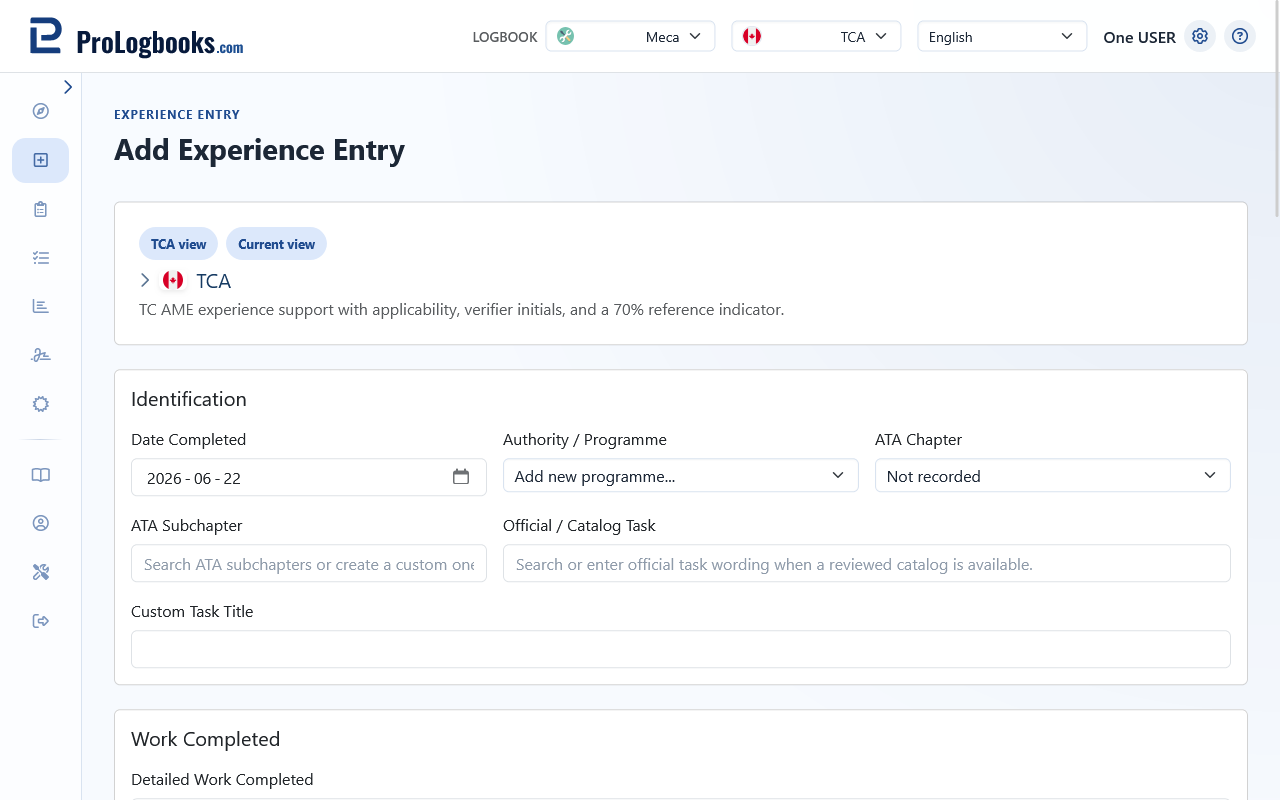
- Confirm that the correct logbook is selected.
- Open My Experience and click Add Experience.
- Select the experience programme from the dropdown.
- Review which fields become visible or required once the programme is selected.
Fill the task details
Select the ATA chapter and ATA subchapter that match the maintenance task. These two fields control how entries are grouped in the ATA print export and in the analytics view.
Enter the maintenance task description, the date the work was performed, and the duration. Duration can be entered in hours and minutes or in days depending on the programme type.
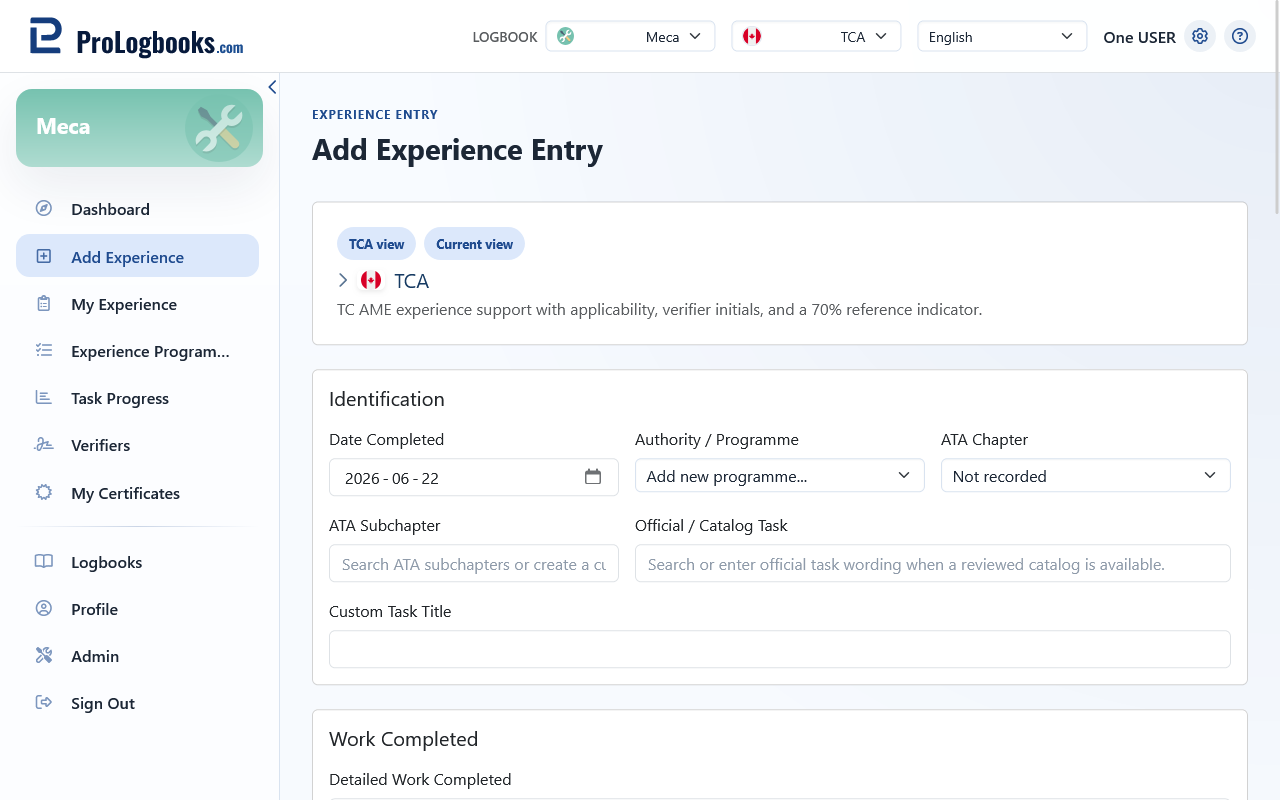
- Select the ATA chapter.
- Select or type the ATA subchapter.
- Enter the maintenance task name or description.
- Set the date the work was performed.
- Enter the duration in hours and minutes, or in days.
- Add any remarks that clarify the scope of the task.
- Save the entry.
- The ATA chapter and subchapter must match the actual system worked on.
- Remarks are optional but help verifiers understand what was done.
Use the TCA M1/M2 task list in the TCA view
When you are using the TCA (Transport Canada) logbook view and you select an ATA chapter that has a task list defined in the M1/M2 rating sample tasks, a dialog appears automatically. The dialog shows the relevant tasks from Transport Canada Form 26-0880 grouped by system variant where applicable.
Select a task from the list to fill the catalog task field, or dismiss the dialog with the skip button if you want to enter a custom task description instead. You can always type freely in the catalog task field regardless of whether you use the dialog.
The list covers approximately 40 ATA chapters drawn from Form 26-0880, spanning general airworthiness checks and daily servicing (ATA 05, 12), autopilot and communications systems (ATA 22–23), electrical and pressurisation systems (ATA 24–36), landing gear and lighting (ATA 32–33), navigation and flight instruments (ATA 34), airframe structures, doors, and windows (ATA 51–57), helicopter rotor and drive systems (ATA 62–67), and engine systems covering power plant, fuel control, ignition, exhaust, and oil (ATA 71–83). Chapters that cover both piston and turbine variants — such as engines (72), fuel and control (73), ignition (74), and exhaust (78) — display tasks under a labelled sub-heading so you can select the correct variant quickly.
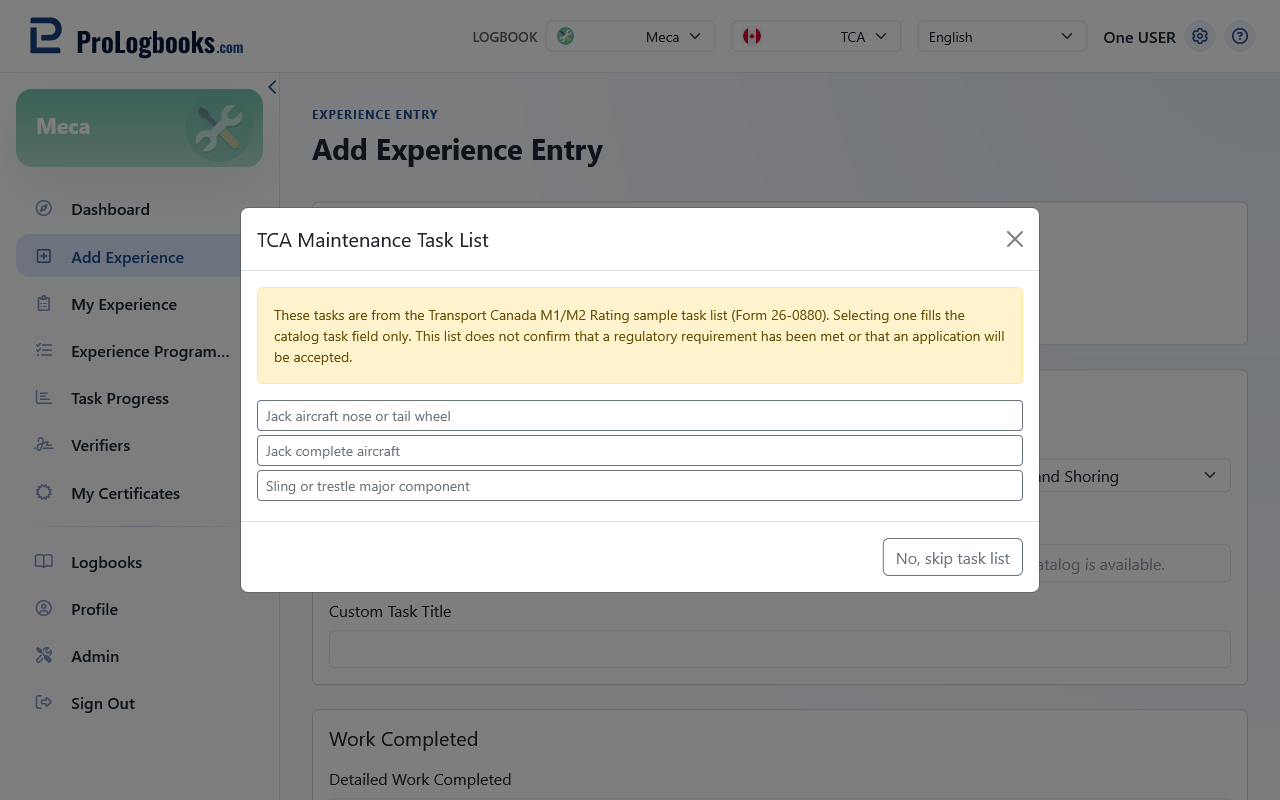
- The dialog only appears in the TCA view and only for ATA chapters that have defined sample tasks.
- The task list is a reference from the TCA Maintenance (M1/M2) Rating requirement only. Selecting a task does not confirm that a regulatory requirement has been met or that an application to Transport Canada will be accepted.
- For ATA chapters covering both piston and turbine systems, the dialog groups tasks under the relevant sub-heading so you can find the correct variant quickly.
- If you dismiss the dialog, it will appear again the next time you change the ATA chapter to one that has tasks defined.
Add a new verifier directly from the form
When filling the sign-off section of an entry, you can add a new verifier without leaving the form. Click the Add verifier link next to the verifier field to open a quick-create dialog. Enter the verifier name, initials, authority, and credential number, then save. The new verifier is immediately pre-selected in the sign-off section.
- Verifiers created from the quick-add dialog are saved permanently and will appear in all future entry forms.
- You can still navigate to the Verifiers page if you prefer to manage verifiers before starting the entry form.
If something goes wrong
- If the programme dropdown is empty, use the Add programme link next to the dropdown to create one without leaving the form, or navigate to Experience Programmes.
- If the verifier field is empty in the sign-off section, use the Add verifier link to create one without leaving the form, or navigate to the Verifiers page.
- If the ATA subchapter list is empty, select the ATA chapter first.
- If the duration field is rejected, check whether the programme expects hours or days.
- If the TCA task list dialog does not appear after selecting an ATA chapter, confirm that the current logbook view is set to TCA and that the selected chapter has sample tasks defined in Form 26-0880.