Read the entry list
Each row shows the date, ATA chapter, maintenance task, duration, and verification status. Colour badges indicate whether an entry is verified, partially verified, or not yet signed off.
Use the search and filter controls at the top of the list to narrow the view by date range, ATA chapter, programme, or verification status.
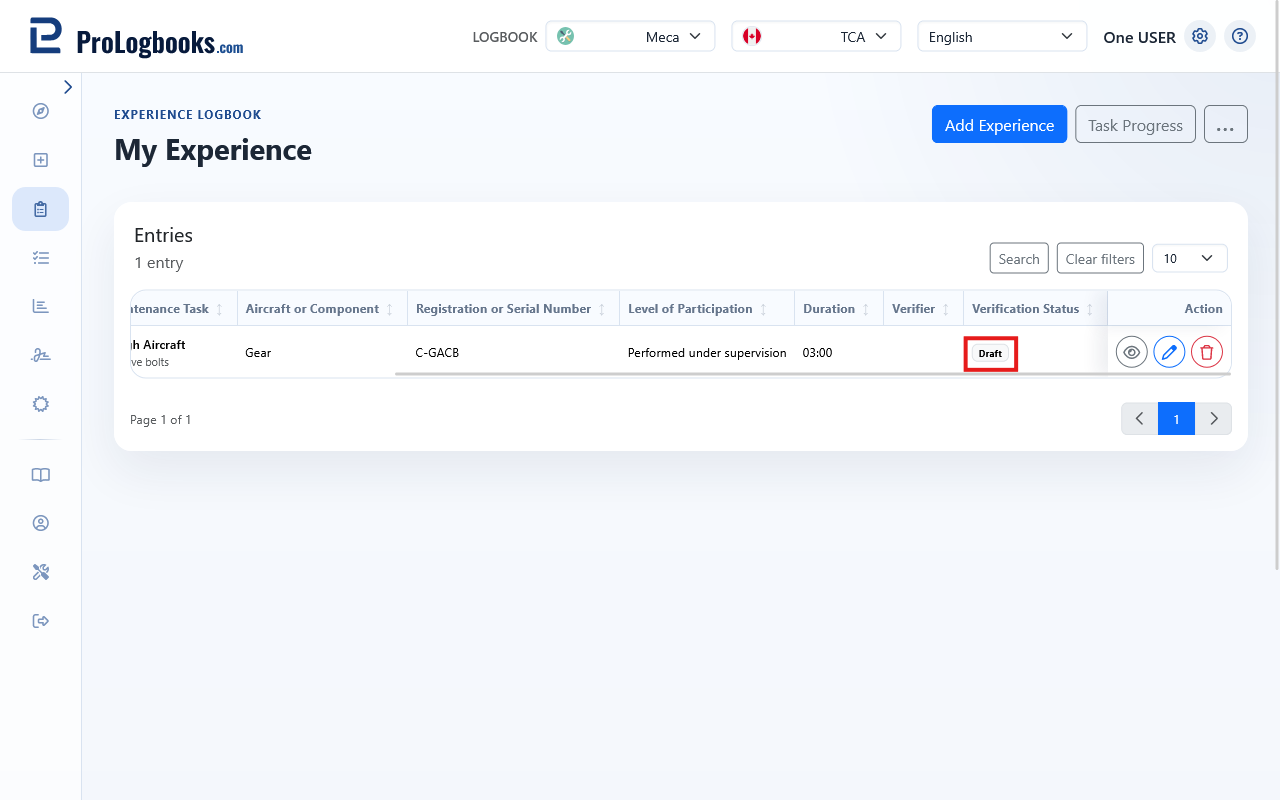
- A green badge means the entry has at least one verified sign-off.
- A yellow or partial badge means some sign-offs are present but the entry is not fully verified.
- No badge or a grey badge means the entry has not been signed off yet.
Edit an entry
Click the edit icon in the action panel on any row to open the entry form. Correct any field and save. Changes to the ATA chapter, subchapter, or task description affect how the entry appears in grouped exports.
On narrow screens, tap the ellipsis button at the right of the row to reveal the action panel before tapping the edit icon.
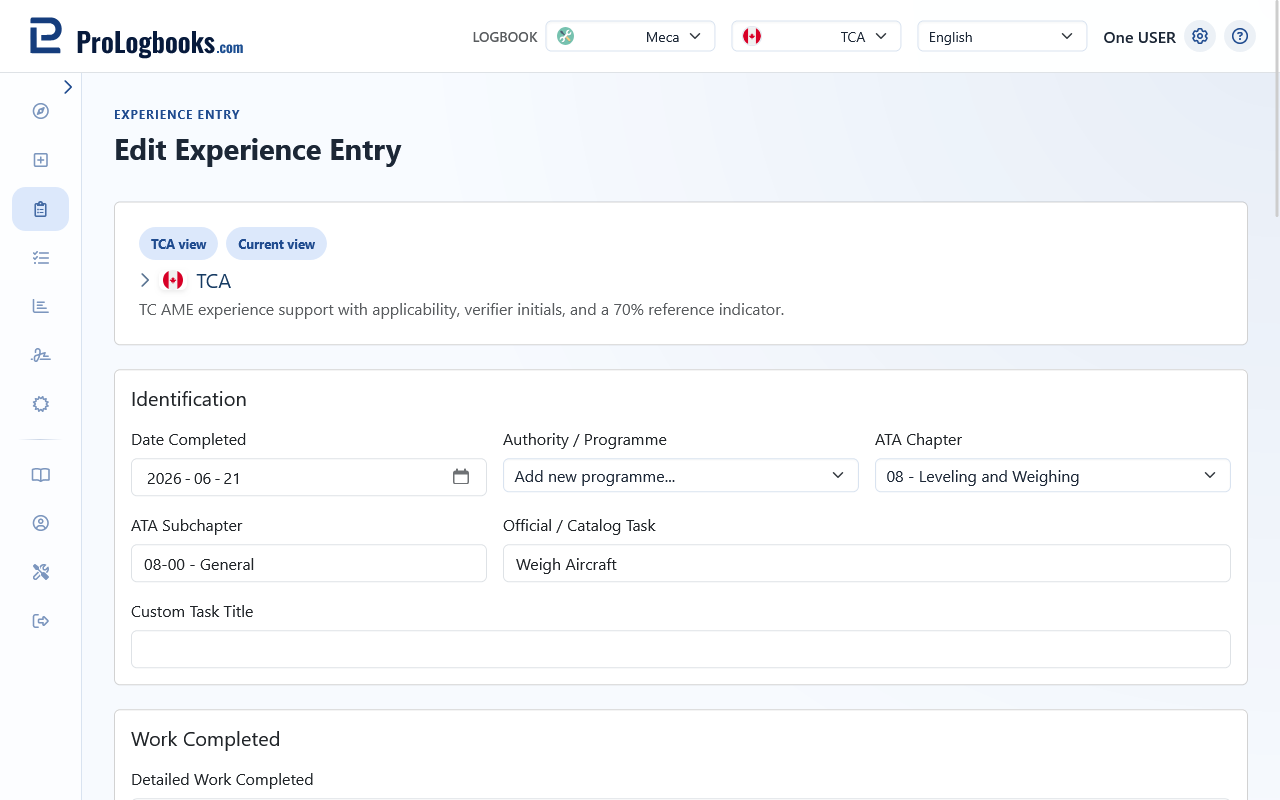
- Find the entry in the list.
- Click or tap the edit icon in the action panel.
- Update the relevant fields.
- Save the entry.
Record a sign-off
Open an entry and use the sign-off section to attach a verifier and set the verification status. The verifier must already exist in your Verifiers list. Choose the status that matches what the verifier has confirmed.
Multiple sign-offs can be attached to one entry when more than one verifier has witnessed or counter-certified the task.
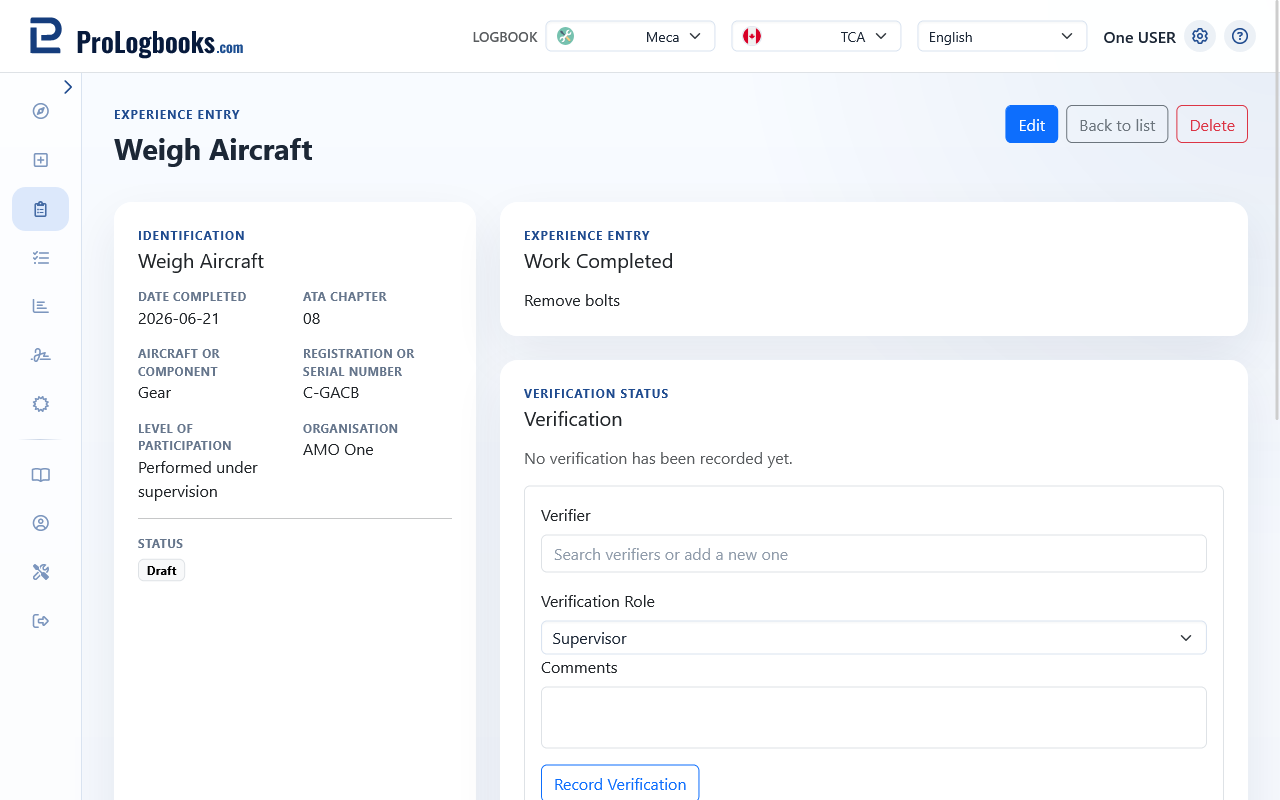
- Open the entry by clicking the edit icon.
- Scroll to the sign-off section.
- Select the verifier from the list.
- Choose the verification status.
- Add the sign-off date.
- Save.
If something goes wrong
- If the verifier dropdown is empty, add at least one verifier on the Verifiers page first.
- If an entry cannot be deleted, it may have a sign-off attached. Remove the sign-off first.