What the module covers
Each experience entry records a maintenance task, its ATA chapter and subchapter, the date it was performed, the duration in hours or days, and optional remarks. Entries belong to an experience programme that defines the regulatory authority framework, such as EASA Part-66, FAA, TCCA, or a generic format.
Verifiers are the people who witness and countersign your work. You register each verifier once with their name, initials, credential, and optional licence information, then attach them to individual entries at sign-off time.
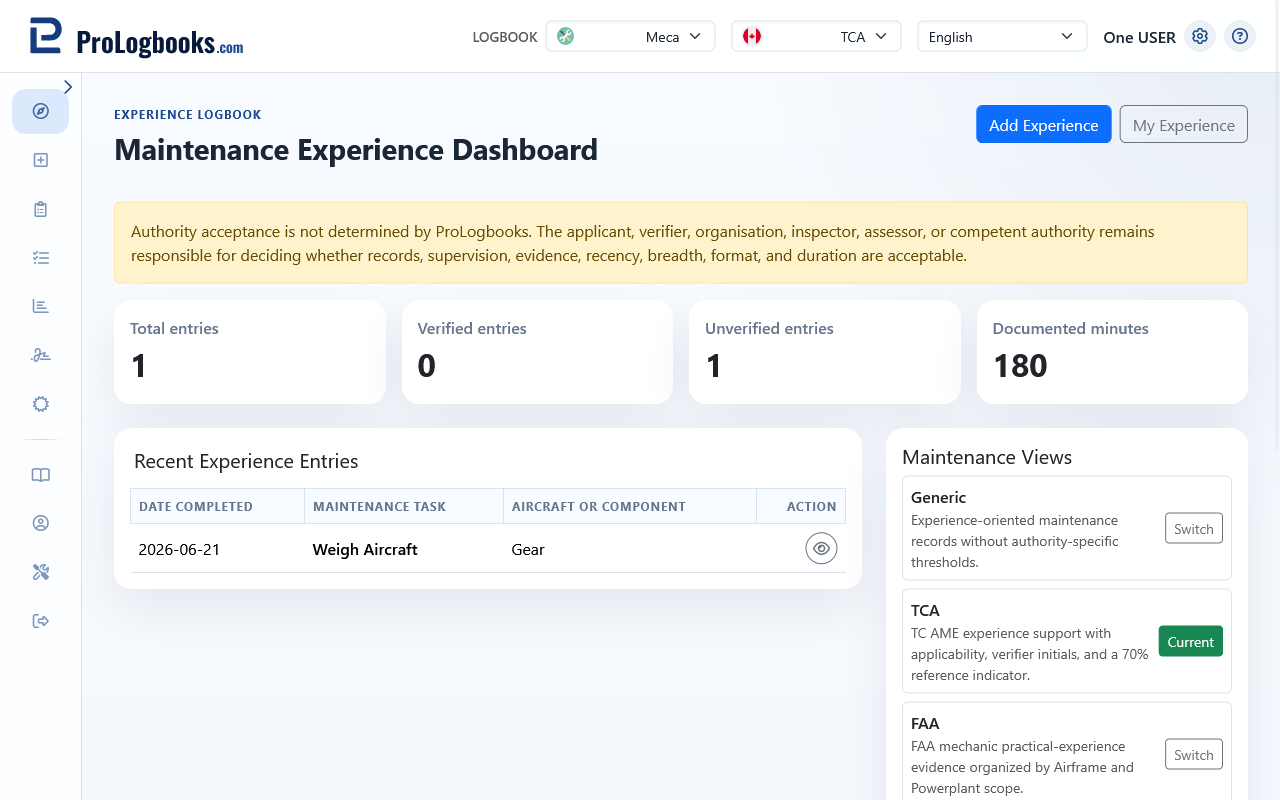
- Each logbook can have multiple experience programmes for different authorities.
- ATA chapters structure maintenance into internationally recognised technical domains.
- Verification status tracks whether each entry has been signed off.
Navigate the module
Access the maintenance experience module from the sidebar or the dashboard. The main list shows all entries for the active logbook. From the top navigation you can switch to My Experience, Experience Programmes, and Verifiers.
Use the logbook picker to switch between logbooks. All experience data, programmes, and verifiers are scoped to one logbook at a time.
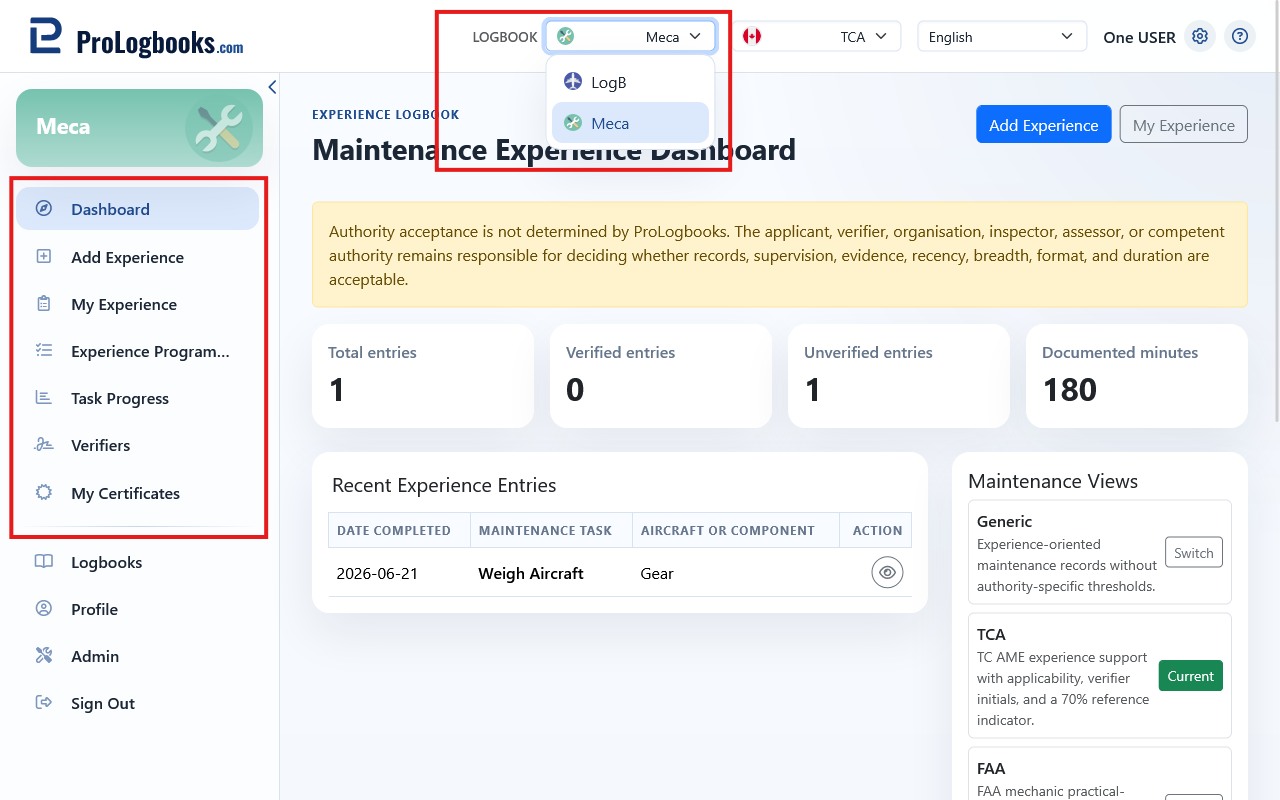
- Select the correct logbook from the workspace picker.
- Open Maintenance Experience from the sidebar.
- Choose My Experience to see the entry list.
- Choose Experience Programmes to manage programmes.
- Choose Verifiers to manage your list of verifiers.
If something goes wrong
- If the Maintenance Experience menu is not visible, confirm that the current logbook is a maintenance logbook type.
- If entries from another logbook appear, use the workspace picker to switch to the correct logbook.